Restore Photos of Grandparents
Bring a faded portrait of your grandmother or grandfather back into focus, then add natural color so grandchildren can see them the way you remember.
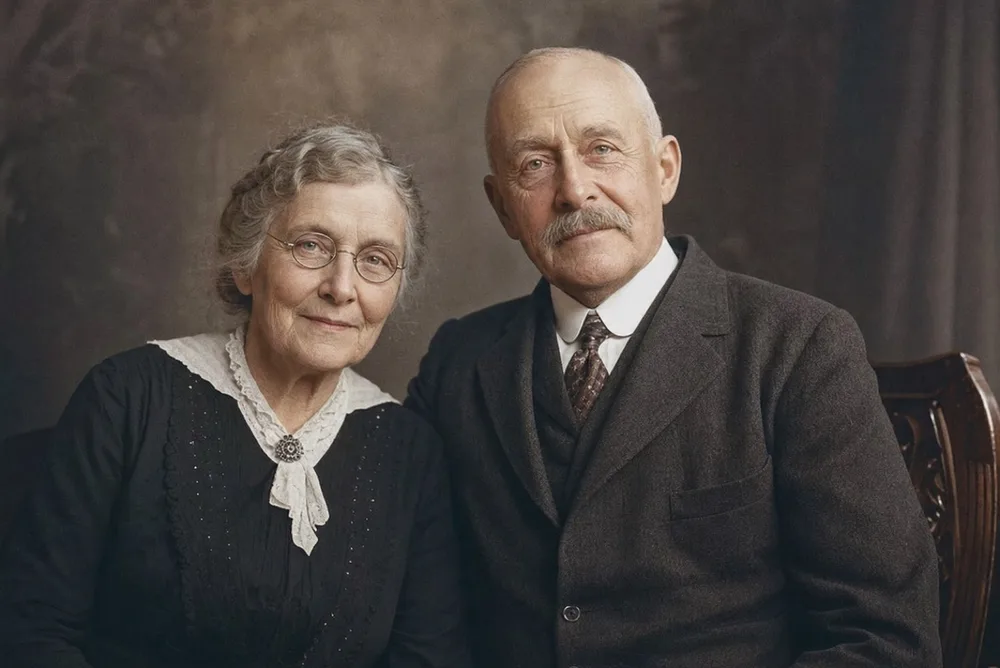
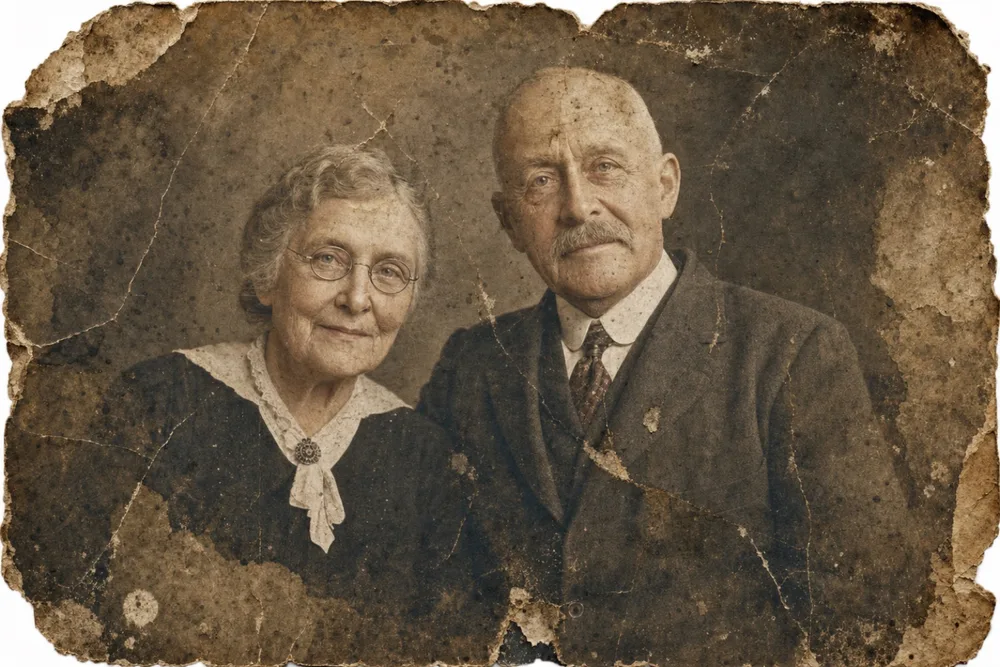
Drag to compare before & after
To restore photos of grandparents, start with OldtoLife's Restore tool to repair scratches, creases, stains, and fading, then run Colorize if the original is black-and-white or sepia — used together, they turn a fragile old print into a photo your family can actually see clearly, sometimes for the first time in decades.
For many families, a handful of prints are all that remain of a grandparent: a studio portrait from a wallet, a faded snapshot from a move, a torn photo rescued from a flooded box in the attic. Restoring that image well matters more than usual, because for some grandchildren it will be the only clear look they ever get at that person's face.
Why Photos of Grandparents Need a Different Approach
Most photos of grandparents come from a specific stretch of decades, and that shapes the kind of damage they carry. A black-and-white or sepia studio portrait from the 1940s or 50s tends to show fading around the edges and fine surface cracking. A color snapshot from the 60s through 80s has often shifted orange, pink, or yellow as the dyes broke down. Either way, these aren't recent phone photos — they carry visible history: a scratch across a collar, a crease from being folded into a wallet and carried for years, water spotting from a basement or an attic.
That history is part of why these photos matter, but it's also what makes them hard to look at clearly. A stain across a face or a crack through an eye doesn't just look worn, it gets in the way of actually seeing the person. Restoration isn't about erasing the past the photo came from — it's about removing the damage that's blocking the portrait underneath, so the grandparent in it is visible again.
- Black-and-white or sepia studio portraits with fading at the edges
- Wallet-size prints worn soft and cracked along fold lines
- Color photos from the 60s–80s that have shifted orange, pink, or yellow
- Water stains or spotting from basements, attics, or moves
- Torn corners or missing pieces from photos stored loose in a box
Colorizing So They Feel Present Again
A large share of grandparents' photos exist only in black-and-white or sepia, which can make them read as historical artifacts rather than pictures of an actual person. Color changes that. OldtoLife's Colorize tool adds natural, period-appropriate skin tones, hair color, and clothing color to a black-and-white portrait automatically — no guessing at what shade a cardigan might have been, no manual painting.
For grandchildren who never met a grandparent, or only knew them briefly, seeing them in color can be the first time that person looks like someone real rather than a figure locked behind old film. It's a modest technical step with an outsized emotional result, which is why families often colorize a portrait before it goes into a frame, a slideshow, or a group chat.
The Right Order: Restore, Then Colorize, Then Enhance
Order matters when a photo needs more than one tool. Run Restore first on any damaged print, since it's built to repair the surface — scratches, cracks, stains, missing texture — before color gets involved. Colorizing a photo that's still damaged means the tool has to lay color across cracks and stains that haven't been fixed yet, which can leave uneven patches where the damage was.
Once the surface is repaired, colorize if the original is black-and-white or sepia. From there, Enhance is worth a pass if you plan to crop in on the face for a frame or a memorial slideshow, or if the original print is small — a wallet photo, say — and you want it to hold up at a larger size. Each tool takes about 10 seconds, and the before/after slider lets you check the result against the original before you save it.
Sharing a Restored Photo of a Grandparent Across the Family
A restored, colorized photo of a grandparent tends to circulate. It gets dropped into a family group chat, printed for a reunion table, or used in a memorial slideshow where a clear, present-feeling image matters more than usual. The before/after slider is useful here too — it lets you show relatives exactly what changed without having to explain it, which often prompts someone else in the family to dig out their own box of old prints.
Once you're happy with a result, save it to your camera roll at full resolution and print or share from there. If you're building something a family will keep — a framed portrait, a printed keepsake, a genealogy record — a Premium full-HD download gives you a file worth printing at a larger size, not just viewing on a phone screen.
- A framed print for a grandchild who never met them
- A memorial or funeral slideshow
- A family reunion display or memory table
- A genealogy record attached to a family tree
- A holiday gift for a parent, aunt, or uncle
Step by step
- 1
Photograph or scan the original print
Lay the photo flat in even, indirect light and capture it straight-on so the whole print is in frame without glare.
- 2
Run Restore first
Use Restore to repair scratches, creases, tears, stains, and fading before anything else, since color and sharpening work best on a repaired surface.
- 3
Colorize if it's black-and-white or sepia
Tap Colorize to add natural, period-accurate color to skin, hair, and clothing so the portrait feels like a real person again.
- 4
Enhance for detail, if needed
If the original is small or you're planning a close crop, run Enhance to sharpen facial detail and recover resolution.
- 5
Compare, save, and share
Check the result against the original with the before/after slider, then save to your gallery or share it directly with family.
Common questions
Can I restore a photo of my grandparents if it's the only copy I have?
Yes. OldtoLife works from a photo of the print (or a scan) and returns a new digital result — the original print itself isn't altered, so it's safe to try even if it's your only copy.
Should I colorize a black-and-white photo of my grandmother or grandfather?
It's a personal choice. Many families colorize because it makes the person feel more present and recognizable to grandchildren who never met them, while others prefer to keep a portrait in its original black-and-white for its historical feel.
What if the photo is torn or missing a piece, not just faded?
For photos with larger missing sections — a torn corner over part of a face, for example — use Recreate, which is built to rebuild those missing areas rather than just clean up surface damage.
Will restoring change how my grandparent actually looks?
No. Restore and Enhance work from the details already present in the photo — they repair damage and sharpen what's there, they don't invent a different face.
How long does it take to restore and colorize one photo?
Each tool takes about 10 seconds, so restoring and colorizing a single portrait typically takes well under a minute of processing time in total.
Still have a question? Email us
Tools & guides for this
Restore Old Photos with AI
Erase scratches, stains, creases, and tears from old prints. OldtoLife rebuilds the damaged areas of a photo so a worn picture looks whole again — in about ten seconds.
Colorize Black and White Photos with AI
Add natural, period-accurate color to black-and-white and sepia photos in about ten seconds — no manual painting, no guesswork, just a believable result you can compare side by side with the original.
Enhance Photo Quality: Sharpen Blurry Faces & Boost Resolution
Turn soft, blurry, low-resolution photos into sharp, detailed images — Enhance recovers the fine detail old cameras and scans lost, without changing the photo's original color or character.
Restore Ancestor Photos for Your Family Tree
The one surviving photo of a great-great-grandparent is often faded, torn, or missing a corner — restoring it turns a fragile keepsake into a clear portrait you can attach to your family tree and pass down.
Restore Old Family Photos
The family photos in a shoebox are often the only images you have of the people who came before you. OldtoLife helps you repair and revive them before they fade any further.
Restore Vintage Portraits from Your Phone
Bring back the sharp detail and true tones of a studio portrait without touching the fragile original print underneath.
How to Colorize Black and White Photos Without Losing Detail
Turning a black-and-white photograph into natural color used to take a trained retoucher hours by hand — an AI colorizer can now do it in about ten seconds, if you know how to get the best result.
Gift Ideas Using Restored Family Photos
A faded, damaged photo doesn't feel like a gift as-is — but restored, colorized, and printed well, the same image can become the most personal present in the room.
How to Digitize Old Family Photos (Without Losing Quality)
Digitizing your family's old prints protects them from fading, damage, and loss, and turns a shoebox of photos into files you can search, share, and restore in seconds.
Your memories deserve to be seen clearly
Download OldtoLife and restore your first photo in seconds. Every tool is free to try — no account needed.