Restore Old Photos with AI
Erase scratches, stains, creases, and tears from old prints. OldtoLife rebuilds the damaged areas of a photo so a worn picture looks whole again — in about ten seconds.
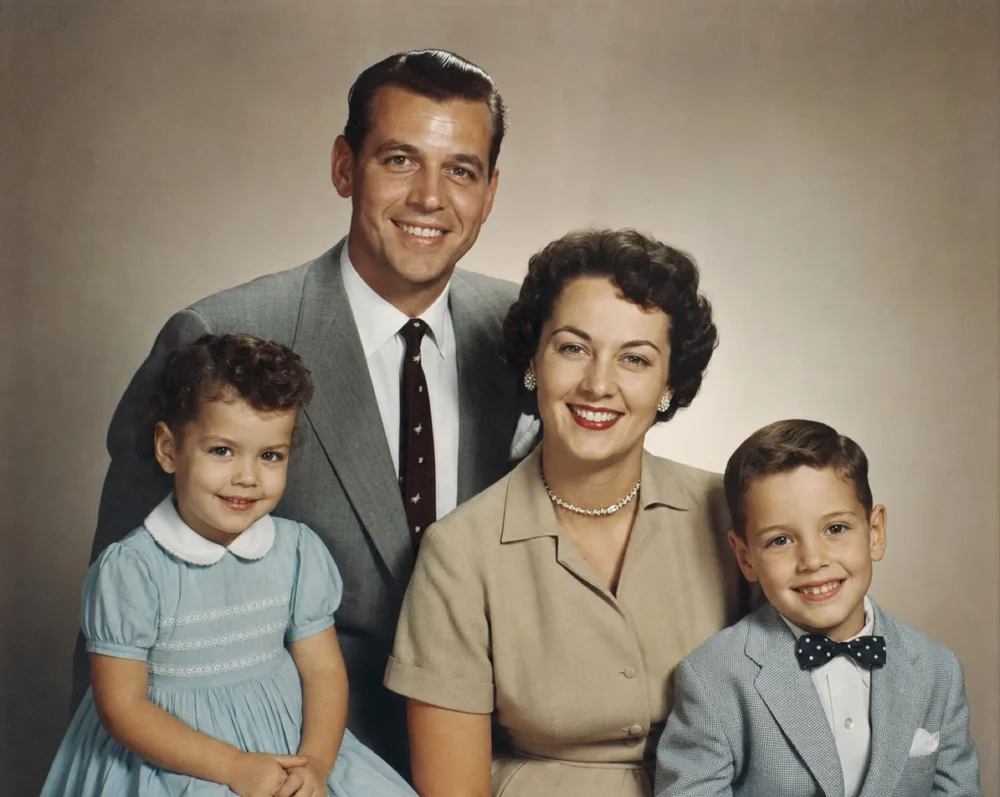
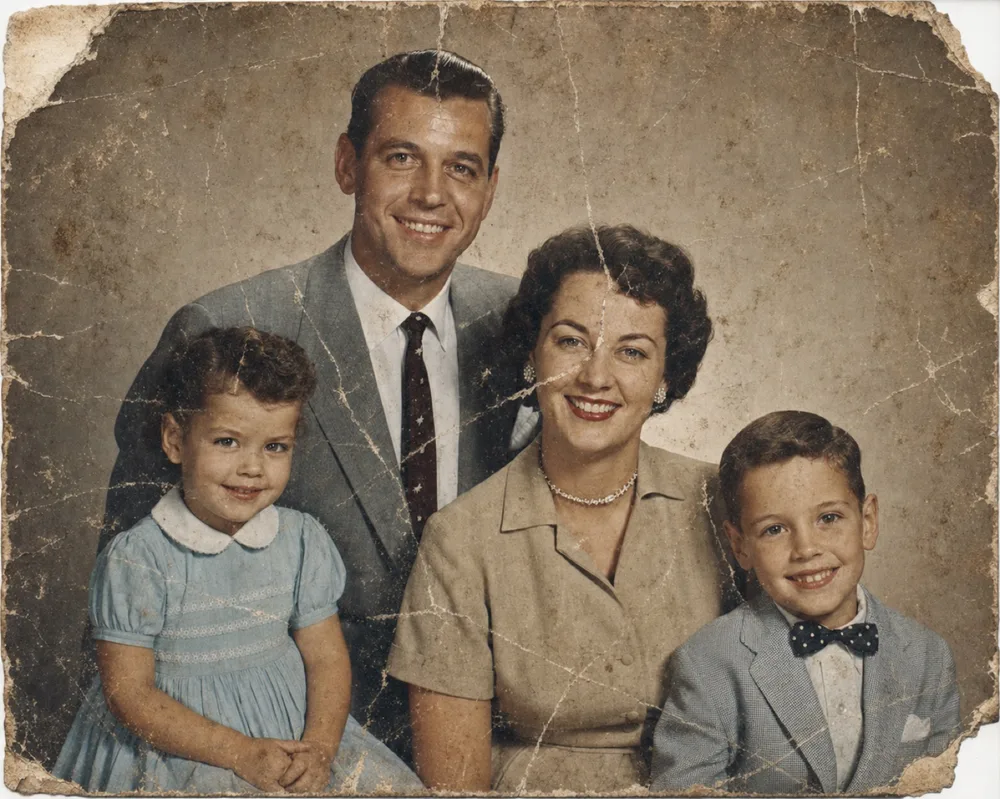
Drag to compare before & after
Old photographs pick up damage in a hundred small ways — scratches from being handled, stains from water or tape, cracks along fold lines, and fading from decades in the light. OldtoLife's Restore tool uses AI to detect that damage and reconstruct what was underneath it, so the photo looks the way it did when it was new.
You don't need editing skills or a computer. Choose the photo, tap Restore, and the app returns a clean, high-resolution version you can compare with a before/after slider, save, and share.
What the Restore tool fixes
Restore is built for physical damage — the wear a printed photo collects over time. It targets the marks that make a photo look old and distracting, while leaving the genuine content of the image intact.
Because the AI understands what faces, clothing, and backgrounds usually look like, it can fill a scratch that crosses a cheek or rebuild a torn corner in a way that blends naturally instead of leaving a smudge.
- Surface scratches and hairline scuffs
- Water stains, foxing, and discoloration
- Tears, creases, and fold lines
- Missing corners and chipped edges
- Dust and speckling from old scans
How AI photo restoration works
When you submit a photo, OldtoLife sends it to an AI image model trained on millions of pictures. The model recognizes the difference between real detail and damage, then reconstructs the damaged regions using the surrounding context.
The result is not a filter laid over the top — it is a newly rendered version of the image with the damage removed. Everything happens on our servers, so even a large, high-resolution scan is processed quickly.
Get the best restoration results
The quality of the input matters. A sharp, well-lit copy of the original gives the AI more to work with and produces a cleaner result.
- Use the highest-resolution scan or photo you have
- Lay the print flat and light it evenly to avoid glare
- Crop out the frame or album background before restoring
- For black-and-white photos, run Restore first, then Colorize
- If a face is blurry, follow up with the Enhance tool
When to combine Restore with other tools
Restore handles damage, but a truly revived photo often needs more than one pass. After removing scratches you can add natural color with Colorize, sharpen soft faces with Enhance, or fix a too-dark exposure with Brighten.
For portraits that are torn beyond simple repair — where large areas of a face are missing — the Recreate tool rebuilds the portrait from what remains.
How to do it, step by step
- 1
Open OldtoLife and tap Restore
Launch the app on your iPhone and choose the Restore tool from the home screen.
- 2
Pick your photo
Select a scanned or photographed print from your camera roll. For best results, use the sharpest copy you have.
- 3
Let the AI work
The app uploads your photo and reconstructs the damaged areas. Most restorations finish in about ten seconds.
- 4
Compare, save, and share
Drag the before/after slider to see the difference, then save the full-resolution result to your gallery or share it with family.
Restore Old Photos with AI — FAQ
Can OldtoLife fix a badly torn photo?
Yes. The Restore tool repairs tears, creases, and missing corners. If a portrait is destroyed to the point that large parts of a face are gone, use the Recreate tool, which rebuilds the portrait from the remaining detail.
Will restoring change the faces in my photo?
No. Restore is tuned to preserve real facial features and identity. It removes damage that sits on top of the image rather than redrawing the people in it.
Do I need to scan my photo first?
You can either scan the print or simply photograph it with your phone. Lay it flat, avoid glare, and use good light — a clear phone photo works well.
Is there a limit to how many photos I can restore?
You can try Restore for free. A Premium subscription removes daily limits and unlocks unlimited restorations with full-HD downloads.
What photo formats are supported?
Common formats such as JPEG, PNG, and HEIC are supported. Use the highest-resolution version you have for the best result.
Still have a question? Email us
Related tools & guides
Colorize Black and White Photos with AI
Add natural, period-accurate color to black-and-white and sepia photos in about ten seconds — no manual painting, no guesswork, just a believable result you can compare side by side with the original.
Enhance Photo Quality: Sharpen Blurry Faces & Boost Resolution
Turn soft, blurry, low-resolution photos into sharp, detailed images — Enhance recovers the fine detail old cameras and scans lost, without changing the photo's original color or character.
Recreate a Severely Damaged Photo Portrait
When a portrait is torn or stained so badly that a whole section of a face is gone, Recreate rebuilds what's missing using AI trained on human facial structure — aiming for a natural likeness, not just a patched-over hole.
Restore Old Family Photos
The family photos in a shoebox are often the only images you have of the people who came before you. OldtoLife helps you repair and revive them before they fade any further.
How to Restore Old Photos (Step-by-Step Guide)
A practical, no-jargon walkthrough for reviving old and damaged photographs with AI — from digitizing the print to sharing a clean, high-resolution result.
How to Remove Scratches and Creases from Photos
Scratches and creases can be smoothed away without touching the original print, whether you retouch by hand or let AI reconstruct the damaged area for you.
Your memories deserve to be seen clearly
Download OldtoLife and restore your first photo in seconds. Every tool is free to try — no account needed.