Merge Photos Into One with AI
Combine 2 to 16 separate photos into one natural frame — bring relatives who were never photographed together into a single shared portrait in about 10 seconds.
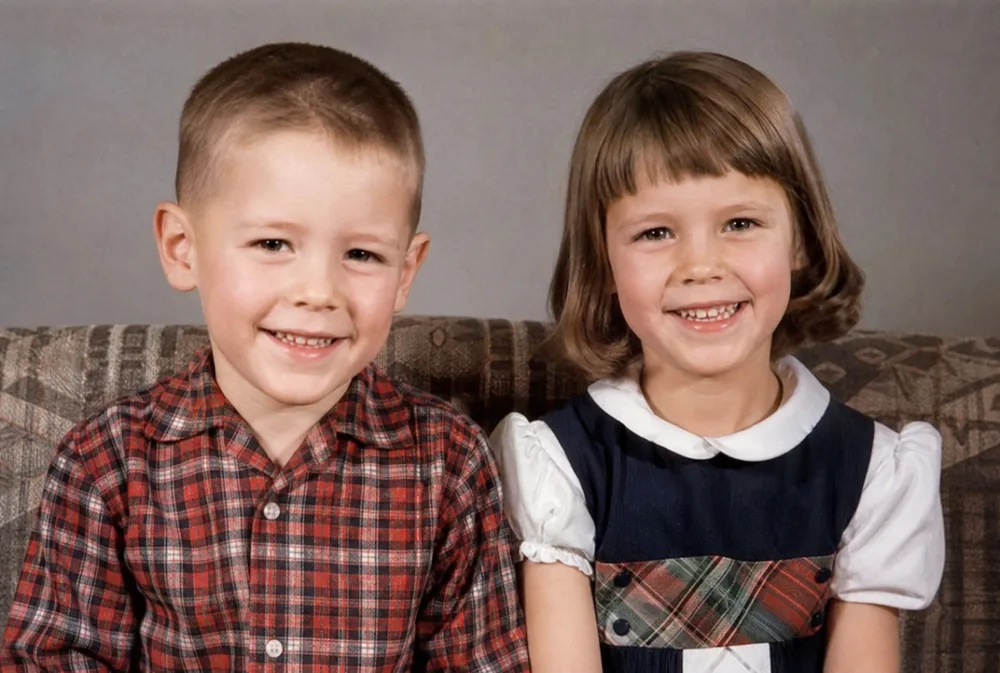
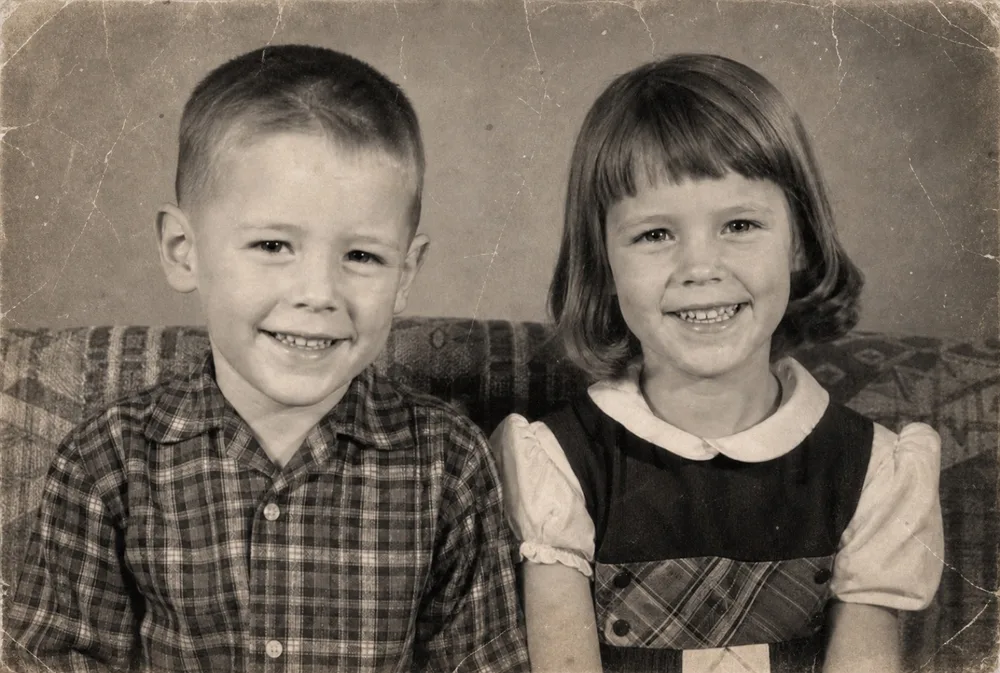
Drag to compare before & after
Merge photos into one by uploading between 2 and 16 separate images and letting OldtoLife's AI combine them into a single natural-looking frame. It's built for a specific kind of family need: bringing people who were never in the same room together into one shared portrait.
Many family photo collections have a gap — a grandparent who passed before a grandchild was born, siblings scattered across decades of snapshots, a parent who was always the one behind the camera. Merge closes that gap by placing separate photos of each person into one frame, matching lighting and scale so the result reads as a single picture rather than a collage.
What Merge is actually for
Merge solves a problem that no amount of restoring, colorizing, or enhancing can fix: a photo that simply never existed. If your grandmother died before your youngest cousin was born, no camera ever caught them side by side. Merge builds that picture after the fact, using whatever separate photos of each person you already have.
This is different from a simple photo collage, which places pictures next to each other in a grid with visible borders. Merge instead reconstructs one continuous scene, adjusting scale, lighting, and tone so the people appear to occupy the same space at the same moment, even though the source images were taken years and rooms apart.
It works for more than missing relatives, too. It can rebuild a group photo where one person stepped out of frame, combine solo portraits into a couples or family shot, or gather photos from different points in a family's history into one composite that represents them together.
- Add a deceased or distant relative into a family portrait
- Rebuild a group photo missing one or more people
- Turn separate solo portraits into a combined family shot
- Bring together photos taken years or decades apart
How merging 2 to 16 photos works
Upload each source photo — anywhere from two to sixteen — and tap Merge. The AI identifies the people in each image, then composes them into a single new scene, adjusting proportions so no one looks pasted in at the wrong scale and balancing light and color so skin tones and backgrounds don't clash.
The more photos you add, the more the AI has to reconcile: different backgrounds, different lighting setups, different photo quality. Two or three clear portraits merge more convincingly than sixteen mismatched snapshots, though the tool is built to handle the full range.
Getting a natural-looking result
Merge works best when the source photos give the AI clean material to work with. A close, well-lit portrait of each person — face and shoulders clearly visible, not obscured by shadow or a crowded background — produces the most convincing composite.
Photos with similar quality and lighting blend more seamlessly than a sharp modern photo merged with a faded, low-resolution print. If one of your source photos is old, faded, or black-and-white, restoring or colorizing it first, before merging, closes that gap and gives Merge two images that are easier to reconcile into one frame.
- Use close, front-facing portraits when possible
- Pick photos with even, similar lighting
- Restore or colorize older photos before merging them with newer ones
- Crop out cluttered backgrounds so the AI focuses on the people
- Start with fewer photos if you want the most seamless result
Where Merge has limits
Merge is a powerful tool, but it isn't magic. It works from what's visible in your source photos, so if a face is turned away from the camera, deep in shadow, or too small in the frame, the AI has less to work with and the result will show it. Extreme differences in angle, such as one photo shot from above and another from below, are harder to reconcile into one convincing scene.
It's also worth setting expectations with family: a merged photo is a composite created after the fact, not a record of a moment that happened. Most people use it exactly for that reason — as a tribute or a keepsake — but it's honest to think of it that way rather than as a restored original.
How to do it, step by step
- 1
Open OldtoLife and tap Merge
Launch the app on your iPhone and choose the Merge tool from the home screen.
- 2
Select 2 to 16 photos
Choose the separate photos of the people you want to bring together into one frame.
- 3
Let the AI compose the scene
OldtoLife arranges everyone into a single natural frame, matching lighting and scale automatically in about ten seconds.
- 4
Review the result
Compare the merged photo and, if a source image was old or faded, consider restoring or colorizing it and merging again for a closer match.
- 5
Save and share
Download the full-resolution merged photo to your gallery or share it directly with family.
Merge Photos Into One with AI — FAQ
How many photos can I merge into one?
Merge accepts between 2 and 16 separate photos and combines them into a single frame. Using fewer photos, especially for portraits, generally gives the AI more room to place each person naturally.
Can I merge photos of people who died before others were born?
Yes. This is one of the most common uses for Merge — placing a grandparent, a late parent, or another relative into a portrait with family members from a different generation, using separate photos of each person.
Will the merged photo look fake or obviously edited?
The AI works to match lighting, tone, and scale so the people appear to belong in the same frame. Results are strongest when the source photos are clear and reasonably similar in framing; very different angles or lighting can still leave visible seams.
Can I merge old black-and-white photos with recent color ones?
You can, but the mismatch in color and photo quality will usually show. For the most convincing result, colorize or restore the older black-and-white photo first, then merge it with the newer one.
Do I need to tell Merge who goes where in the photo?
No. Just select your photos and tap Merge — the AI arranges the people into a single natural composition. You don't need editing software or manual placement.
Is Merge free to use?
You can try Merge for free. A Premium subscription removes daily limits and unlocks unlimited merges with full-HD downloads.
Still have a question? Email us
Related tools & guides
Restore Old Photos with AI
Erase scratches, stains, creases, and tears from old prints. OldtoLife rebuilds the damaged areas of a photo so a worn picture looks whole again — in about ten seconds.
Colorize Black and White Photos with AI
Add natural, period-accurate color to black-and-white and sepia photos in about ten seconds — no manual painting, no guesswork, just a believable result you can compare side by side with the original.
Restore Old Family Photos
The family photos in a shoebox are often the only images you have of the people who came before you. OldtoLife helps you repair and revive them before they fade any further.
Restore Ancestor Photos for Your Family Tree
The one surviving photo of a great-great-grandparent is often faded, torn, or missing a corner — restoring it turns a fragile keepsake into a clear portrait you can attach to your family tree and pass down.
Restore Photos of Grandparents
Bring a faded portrait of your grandmother or grandfather back into focus, then add natural color so grandchildren can see them the way you remember.
Gift Ideas Using Restored Family Photos
A faded, damaged photo doesn't feel like a gift as-is — but restored, colorized, and printed well, the same image can become the most personal present in the room.
Your memories deserve to be seen clearly
Download OldtoLife and restore your first photo in seconds. Every tool is free to try — no account needed.