Restore School and Graduation Photos
Class pictures, yearbook portraits, and graduation snapshots fade, blur, and crease faster than most keepsakes because they were printed cheaply and handled for decades. OldtoLife sharpens the faces, repairs the damage, and corrects the color so your classmates and that day come back into focus.
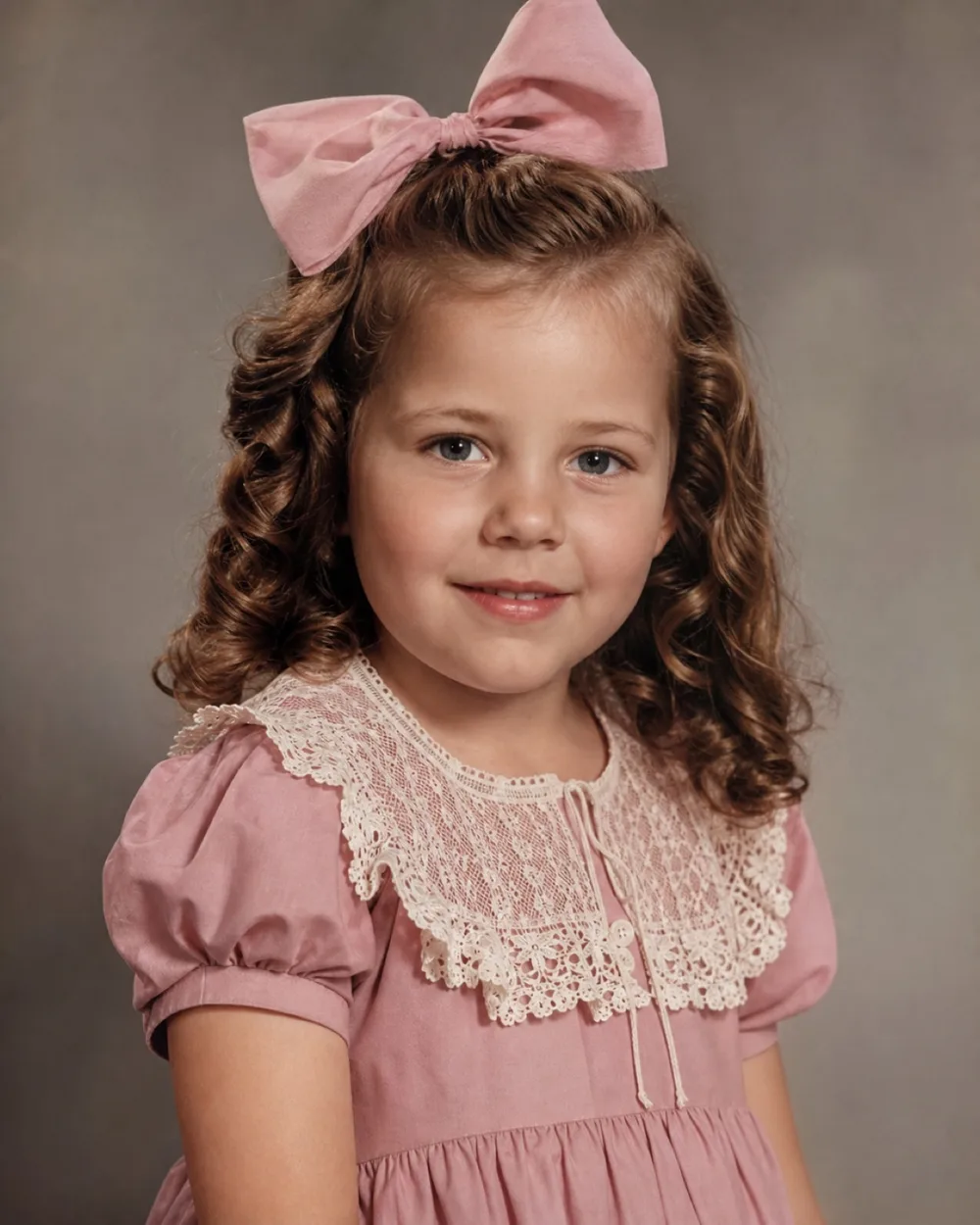
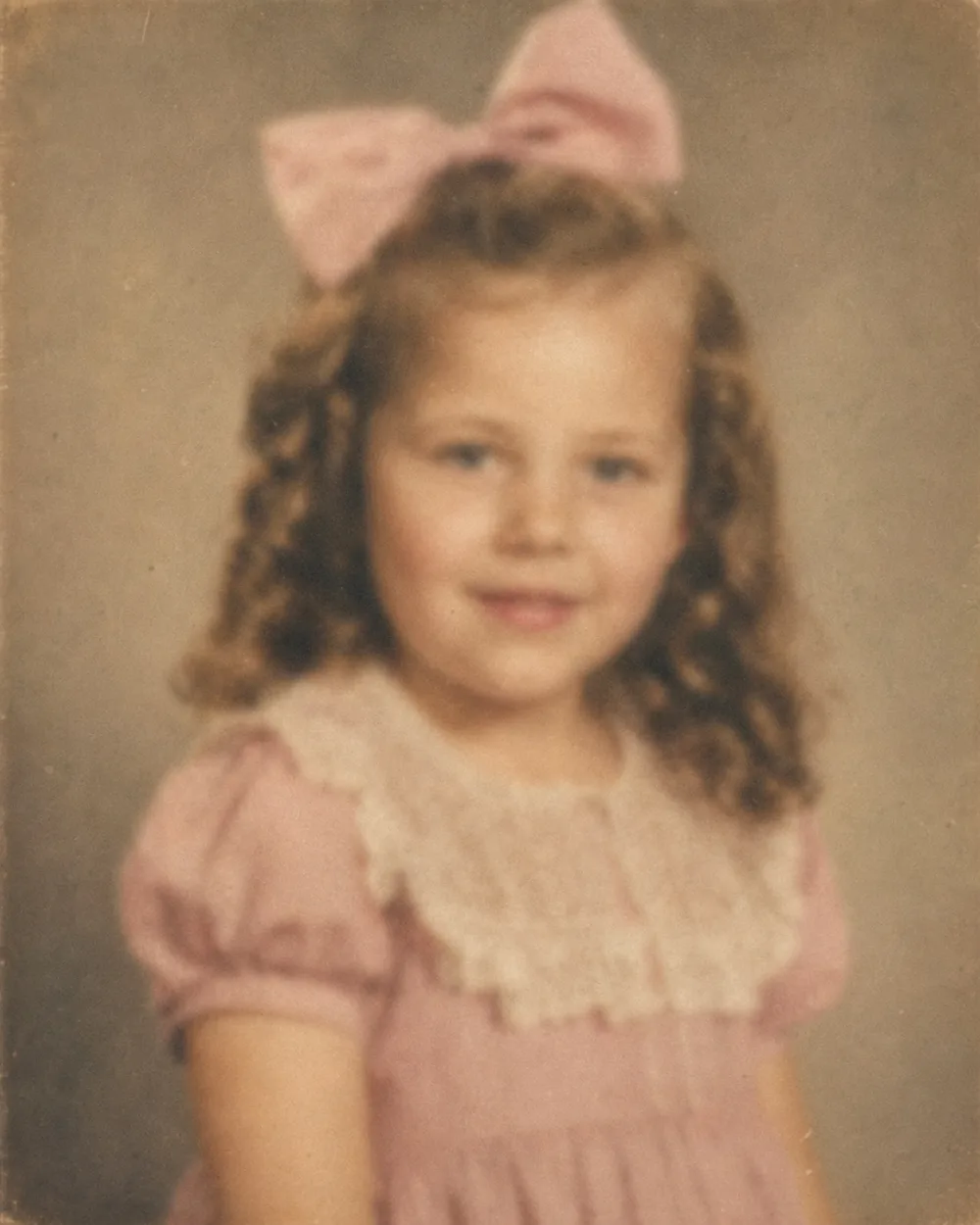
Drag to compare before & after
To restore school and graduation photos, OldtoLife repairs the specific damage these prints tend to carry — a faded cap-and-gown portrait, a scratched class photo, or a yearbook page you had to photograph with your phone — and hands back a sharp, well-lit copy in about ten seconds. These pictures were rarely made to last. School photo vendors printed on inexpensive paper, yearbooks were bound tight and flipped through year after year, and graduation snapshots were often shot quickly in a bright gym or under midday sun.
The result is a familiar set of problems: low-contrast group shots where the back rows lose detail, a soft or blurry focus on small faces, creases from a well-worn yearbook spine, and colors that have shifted yellow or faded toward black and white. OldtoLife's tools were built to address exactly this kind of damage, whether the source is a single print, a scanned yearbook page, or a photo of a photo.
Why class and graduation photos wear differently than other prints
School and graduation photos went through a different life than a typical family snapshot. Class pictures were printed in bulk by school photo vendors, often on thin, low-cost paper stock meant for a wallet or a frame rather than decades of storage. Yearbook pages were bound tightly and opened again and again at reunions and by the students themselves, so the spine crease and the corners of individual photo pages usually show the most wear.
Graduation portraits carry their own set of problems. Studio cap-and-gown shots were often lit with a strong flash that can flatten detail and wash out skin tones, while candid graduation-day photos taken outdoors in midday sun tend to be unevenly exposed. Add a few decades in an album or a drawer, and the color shifts, the paper yellows, and the contrast that once separated a face from the background quietly disappears.
The specific damage found in class and yearbook photos
Because these photos share a common history, the same problems tend to repeat across an entire graduating class or yearbook. A single scan or phone photo often shows several of them layered on top of each other, which is exactly the situation OldtoLife's tools were built to untangle.
Group shots suffer in a particular way: a scratch or crease that would be a minor flaw on a solo portrait can cut straight across several faces at once in a class photo, and fading tends to hit the back rows hardest since those faces were smallest and least detailed to begin with.
- Faded contrast on large group photos, where faces in the back rows lose definition first
- Creases and small tears along a yearbook's spine or page corners
- Low-resolution phone photos or photocopies taken of a glossy yearbook page
- Overexposed or flash-blown cap-and-gown portraits
- Yellowing and color shift in prints kept loose in a drawer or album
- Tape residue or corner marks from photos once mounted on a page
Getting a usable photo of the original before you restore it
A class or yearbook photo is only as good as the copy you start with. If you're photographing a yearbook page, weight the book open flat, keep the whole group photo inside the frame so no faces at the edges are cropped, and watch for glare off the glossy paper — tilt the page or shift your light source slightly rather than shooting straight into a bulb or window.
For loose graduation prints, lay them on a flat, matte surface under even, diffuse light and hold your phone parallel to the photo to avoid perspective distortion. Shoot at the highest resolution your phone allows, especially for large group shots — Enhance works best when it has real detail to sharpen, rather than trying to recover detail from a photo that was already soft or low-resolution to begin with.
Sharpening faces in a crowded group photo
Class photos present a challenge most other pictures don't: dozens of faces packed into one frame, each one only a few pixels wide once the photo is scanned or photographed. This is where Enhance does its most noticeable work, increasing resolution and recovering facial detail across the whole image so individual students become recognizable again, not just a blur of faces.
This matters most before a reunion, when people want to pick out old classmates by name, or when a single class photo is the only record of who sat in a particular row that year. Very heavily blurred or extremely low-resolution originals have a natural limit to how much detail can come back, so starting from the clearest available copy — a yearbook scan instead of a photocopy of a photocopy, for instance — gives Enhance more to work with.
From a faded print to a shareable class or graduation photo
Most school and graduation photos need more than one fix. A typical workflow is to run Restore first to remove scratches, creases, and tape marks, then use Brighten to correct an overexposed flash portrait or a shadowed gym photo, and finish with Enhance on any group shot where faces need sharpening. Because each step takes only seconds, a whole yearbook's worth of class photos is realistic to work through in an evening.
Once a photo is restored, it becomes something you can actually use — posted in a reunion group chat, printed for a class gathering, or saved alongside the original as a backup that won't fade any further. A graduation photo that's been sitting flat and yellowing in a drawer turns back into a picture people want to look at.
Step by step
- 1
Photograph or scan the original
Flatten the yearbook page or print, use even light to avoid glare on glossy paper, and keep the entire group photo inside the frame.
- 2
Restore the damage
Open the photo in OldtoLife and tap Restore to remove scratches, creases, tape marks, and spine wear from the print or page.
- 3
Sharpen faces with Enhance
For class and group photos with many small faces, use Enhance to increase resolution and bring individual features back into focus.
- 4
Correct exposure with Brighten
Use Brighten on flash-blown cap-and-gown portraits or shadowed gym and outdoor shots to balance light across the frame.
- 5
Save and share with classmates
Download the HD result and share it in a reunion group or class chat so everyone has a clear copy.
Common questions
Can Enhance fix a large class photo with dozens of small faces?
Yes. Enhance increases resolution and sharpens detail across the whole frame, which helps recover individual faces in a group photo, though a heavily blurred or very low-resolution original has a natural limit to how much detail can come back.
Will a phone photo of a yearbook page work?
Yes, as long as it's reasonably sharp and well-lit. Flatten the page, avoid glare from the glossy finish, and photograph at the highest resolution your phone allows for the best result.
Can I fix a graduation portrait that's overexposed or too dark?
Yes. Brighten corrects both washed-out flash portraits and underexposed shots taken in a dim gym, balancing the light so the face and details are clearly visible.
Will scratches and creases from a well-worn yearbook be fully removed?
Restore handles typical scratches, creases, and tape marks well. Very deep tears or large missing sections may need the Recreate tool for the best result.
Is it free to restore school and graduation photos?
You can try OldtoLife for free. A Premium subscription removes daily limits so you can work through an entire yearbook or class set and download full-HD results.
Still have a question? Email us
Tools & guides for this
Restore Old Photos with AI
Erase scratches, stains, creases, and tears from old prints. OldtoLife rebuilds the damaged areas of a photo so a worn picture looks whole again — in about ten seconds.
Enhance Photo Quality: Sharpen Blurry Faces & Boost Resolution
Turn soft, blurry, low-resolution photos into sharp, detailed images — Enhance recovers the fine detail old cameras and scans lost, without changing the photo's original color or character.
Brighten Old Photos: Fix Dark, Faded Exposure
Recover a photo that's too dark, too pale, or unevenly lit — OldtoLife balances exposure so faces and backgrounds both come through clearly, in about 10 seconds.
Restore Old Family Photos
The family photos in a shoebox are often the only images you have of the people who came before you. OldtoLife helps you repair and revive them before they fade any further.
How to Fix Blurry Old Photos, Step by Step
Not all blur is the same, and not all blur can be fixed the same way — the trick is matching the fix to what actually went wrong with the photo.
How to Restore Old Photos (Step-by-Step Guide)
A practical, no-jargon walkthrough for reviving old and damaged photographs with AI — from digitizing the print to sharing a clean, high-resolution result.
Your memories deserve to be seen clearly
Download OldtoLife and restore your first photo in seconds. Every tool is free to try — no account needed.